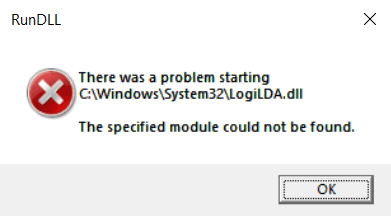
The logiLDA.dll error message may pop up on your screen when Windows starts up. The message states: “There was a problem starting C:WindowsSystem32LogiLDA.dll. The specified module could not be found.” Many users have reported that the ‘logiLDA.dll missing’ error starts to appear after upgrading to a newer version of Windows, including the latest Windows 10 1903 update.
The error is attributed to Logitech Download Assistant, which is an obsolete utility that’s been installed on your PC together with other Logitech drivers some time ago. Even if you are no longer using your old Logitech device, logiLDA.dll still launches every time your system starts up, and there is no clear understanding or explanation from Logitech as to why their utility behaves this way.
Most ‘how-to’ articles suggest disabling logiLDA via Task Manager. This does not always solve the issue, as Logitech Download Assistant has multiple entries in the Windows Registry. The best way to get rid of the annoying ‘logiLDA.dll could not be found’ error is to fully remove any traces of Logitech Download Assistant from your system.
Need an easy way to fix Windows issues like this remotely? FixMe.IT is the world’s #1 rated remote support app that allows to connect to any remote PC in 3 easy steps. Click here to see how it works.
Here’s how you can fix the ‘logiLDA.dll missing’ error for good.
Remove every trace of Logitech Download Assistant with a cleaner utility
Download and run this uninstaller utility. It will securely erase all keys associated with Logitech Download Assistant from the Windows Registry including:
- LDA key in HKEY_LOCAL_MACHINE\SOFTWARE\Microsoft\Windows\CurrentVersion\Run
- HKEY_LOCAL_MACHINE\SOFTWARE\Logishrd\LogiLDA.DLL
- HKEY_LOCAL_MACHINE\SOFTWARE\Logishrd\DownloadAssistant
- HKEY_LOCAL_MACHINE\SOFTWARE\Microsoft\Windows\CurrentVersion\App Paths\LogiLDA.dll
Manually remove the Logitech Download Assistant key from the Windows Registry
- Press Win+R to launch the Run box.
- Type regedit to open the Windows Registry.
- Go to Computer\HKEY_LOCAL_MACHINE\SOFTWARE\Microsoft\Windows\CurrentVersion\Run.
- Right-click on the Logitech Download Assistant key and choose Delete.
- Then manually delete the following folders:
- HKEY_LOCAL_MACHINE\SOFTWARE\Logishrd\LogiLDA.DLL
- HKEY_LOCAL_MACHINE\SOFTWARE\Logishrd\DownloadAssistant
- HKEY_LOCAL_MACHINE\SOFTWARE\Microsoft\Windows\CurrentVersion\App Paths\LogiLDA.dll
Did you find this post helpful? See more Windows tips & tricks on our blog and follow us on Facebook, Twitter or LinkedIn to get all the latest updates as they happen.