There’s an impressive amount of Windows 10 keyboard shortcuts that provide a much faster access to certain OS features, and chances are you apply most of them in your everyday work. But what if you want to be even more productive and put some of the vital Windows features just a click away by creating a desktop icon for a specific keyboard combination?
There is a way, and it can be especially useful for IT pros who utilize remote support tools such as FixMe.IT to perform a variety of operations on a remote desktop every day. Imagine it like this: instead of keeping dozens of long combinations in your head you can create a number of desktop icons that would call on two, three, or more keystrokes at a time.
Let’s see how one can create a desktop icon for a keyboard shortcut that opens Task Manager in Windows 10.
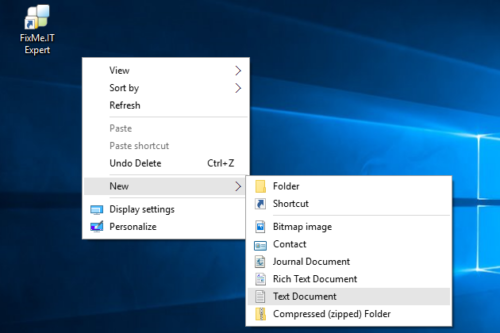
1. Create a simple Notepad file:
2. Open it and type in the following script:
Set WshShell = WScript.CreateObject(“WScript.Shell”)
WshShell.SendKeys “^+{ESCAPE}”
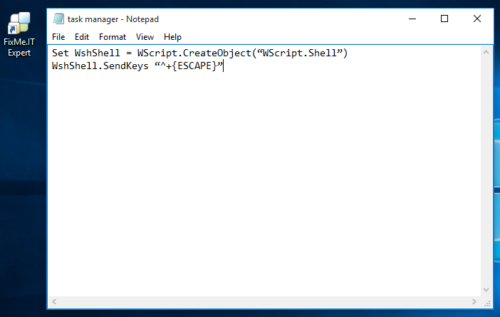
This is a VBScript, which basically triggers a certain keyboard shortcut with the help of the WshShell.SendKeys method. Each key, except for the standard ASCII characters, has its own code that you can find here, or on the official Microsoft website. In this particular case we’re using ^ for CTRL, + for SHIFT, and {ESCAPE} for ESCAPE, respectively.
If the script mentioned above doesn’t work for some reason, try this one:
Set objShell = CreateObject(“WScript.Shell”)
objShell.SendKeys “^+{esc}”
It does the same trick.
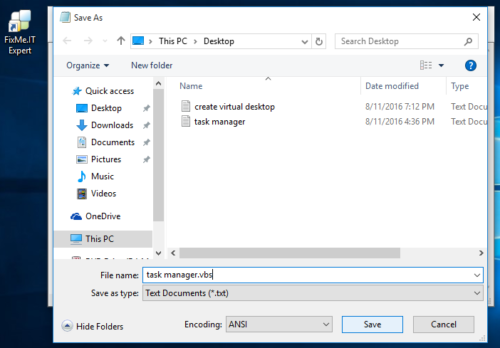
3. Click Save as, and save the text file to your desktop under the .vbs extension.
4. Double-click on the new desktop shortcut and rejoice!
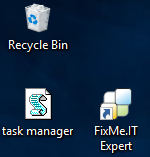
However, you will face a slight problem with using the VBScript if you need to trigger the Win key. The reason is that there’s currently no code for it. Luckily, there is an alternative way to create desktop icons for Win key commands with the help of AutoIt scripts.
1. First, go to the official AutoIt website and download the full installation package. Despite the fact that Windows 10 is not mentioned as one of the supported versions, all of the scripts open and work perfectly in the new version of Microsoft OS.
2. Again, create a blank Notepad file and type in the following code: Send(“#^d”). It will trigger the WIN+CTRL+D command that creates a new virtual desktop. To view the complete list of AutoIt codes for the Send function, see the following link.
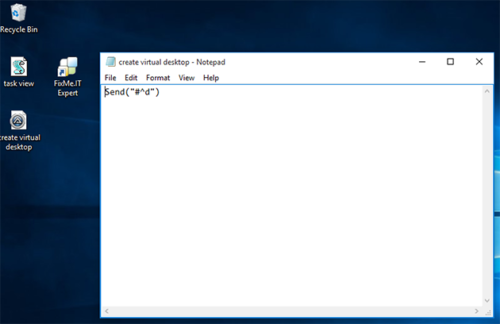
3. Choose Save as, and save the text file to your desktop under the .au3 extension.
4. Double-click on the new icon and watch the magic happening!