Our mission is to create the best pro-grade solution that will transform your remote support experience. That is why we’re building SetMe so that every feature is carefully thought out and brought to perfection.
When designing and implementing new capabilities, we pay close attention to the way they interact with various operating system features, looking for any potential issues, side effects and overlaps. Every single detail matters and no stone is left unturned.
Some of the newest additions that serve as the perfect example of this approach are the screen blanking and keyboard lock indicators. You might have noticed them already if you’re on the latest version of SetMe:
- A green border appears around the remote screen within your remote desktop window to let you know that screen blanking is currently enabled.
- Similarly, you will see a yellow border within your remote desktop window when the remote keyboard and mouse are locked.
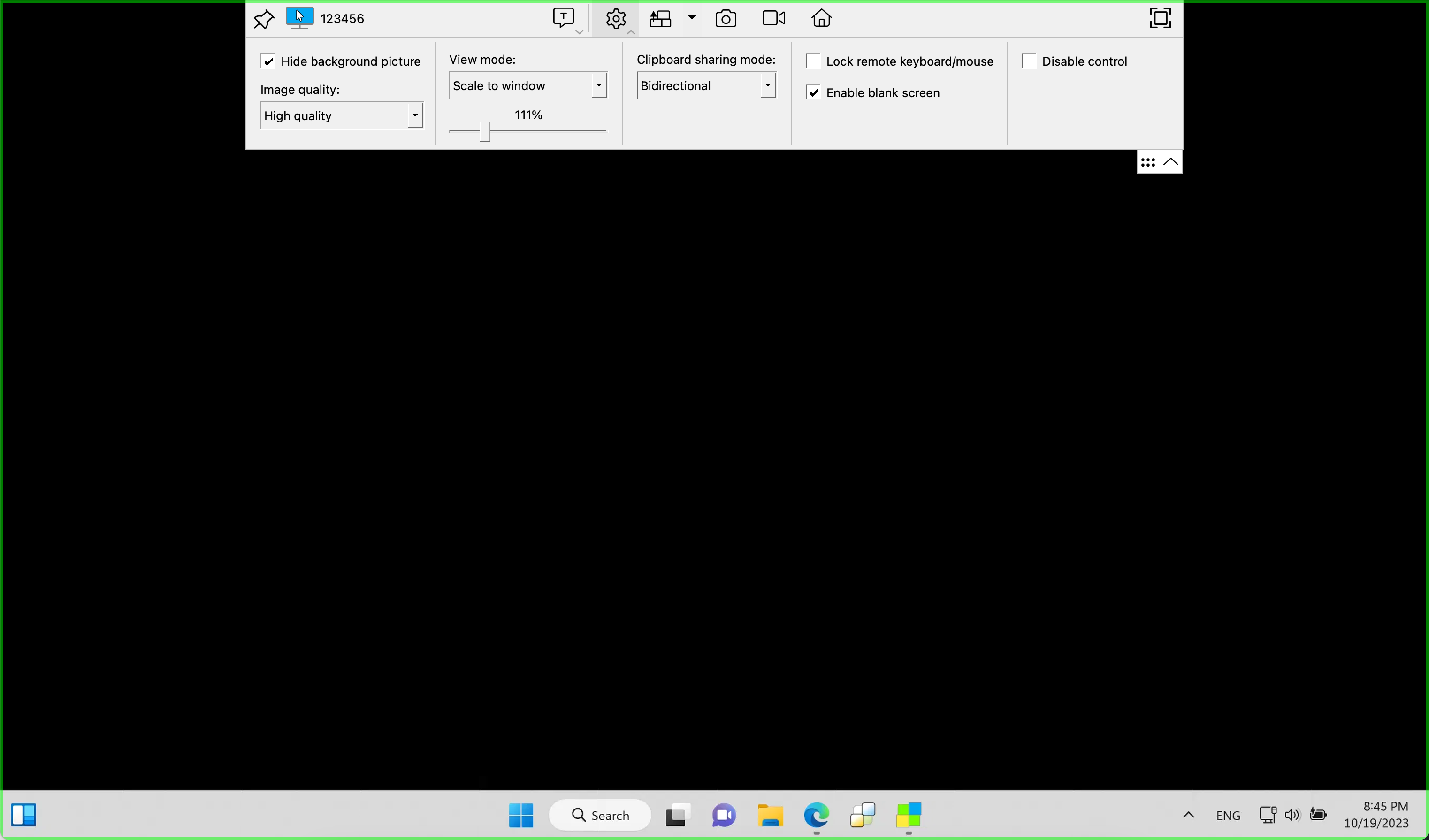
At first glance, it would seem that there is nothing new here. However, we have conducted a thorough research and found that many well-known apps, such as Slack and Skype, can interfere with your work by covering the taskbar when displaying a green frame to indicate that a particular mode (i.e. screen sharing) is active.
In turn, SetMe is designed in a way that open app indicators on the Windows taskbar will never be hidden behind the green/yellow border. SetMe’s border indicators are thin and transparent so you can always see which app is currently running on the remote computer. Such a small, yet useful feature will significantly improve your remote desktop experience without you even noticing it.
We’re always working to introduce new features and enhancements that will take your experience to the next level. Many of them are just around the corner, including unattended access, annotation tools, and the ability to change the remote computer’s screen resolution via the toolbar.
We’re also running a limited-time special offer, so start your free SetMe trial today and get all the new features at the discounted rate: